Maybe you’re moving from another platform. Maybe you have a list of church members, course students or club families in a spreadsheet. Either way, your audience already exists. Bamboo lets you bring them in with a CSV file, so they can sign in to your streaming site without starting from scratch.
How the Import Works
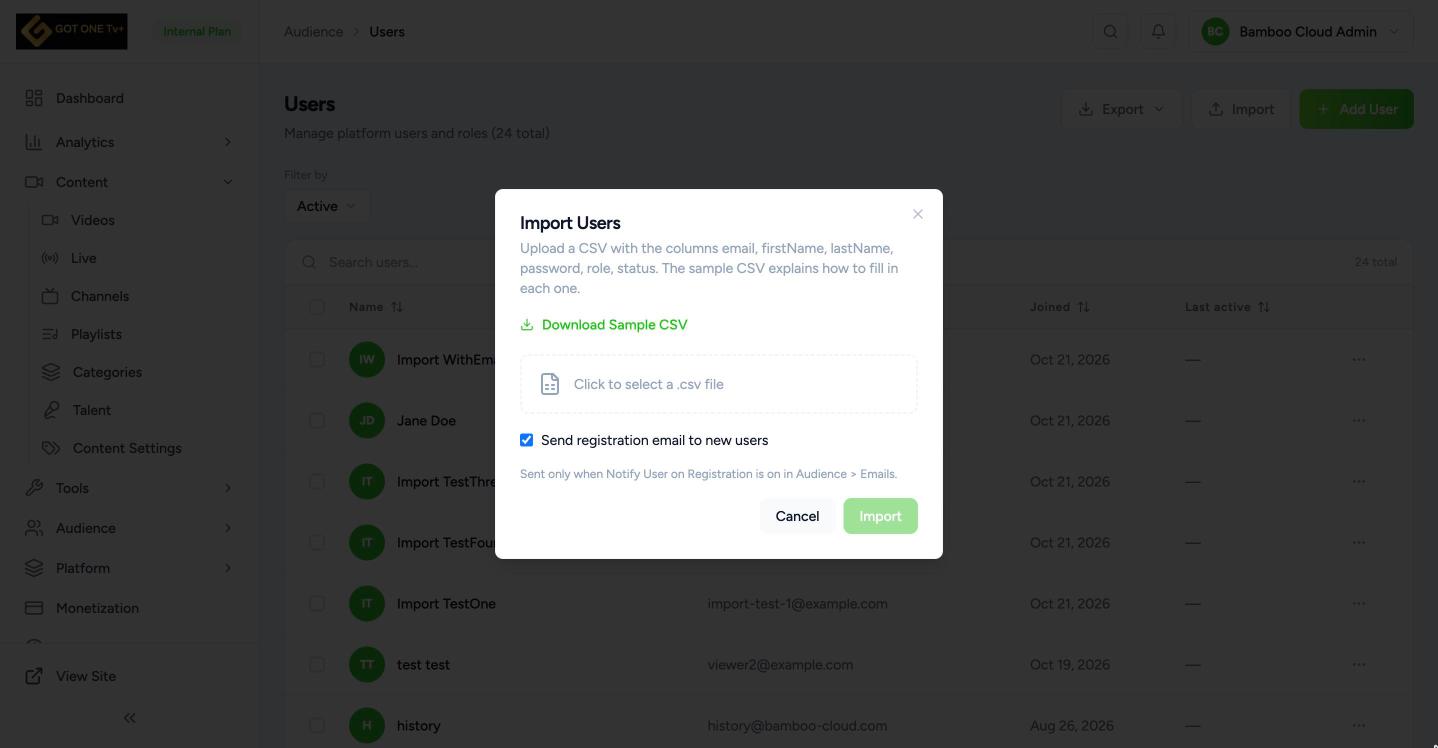
Go to Audience > Users and click Import. Start with Download Sample CSV, so you have a file in exactly the right format.
The sample file uses these columns:
- email: the address each viewer signs in with.
- firstName and lastName.
- password: a starting password for each viewer.
- role: always viewerRole. You can delete this column.
- status: 1 for Active, 0 for Blocked. You can delete this column, and viewers default to Active.
Fill in your viewers, delete the note rows that start with #, keep the header row, and save the file as CSV. In Excel, use CSV UTF-8 (Comma delimited).
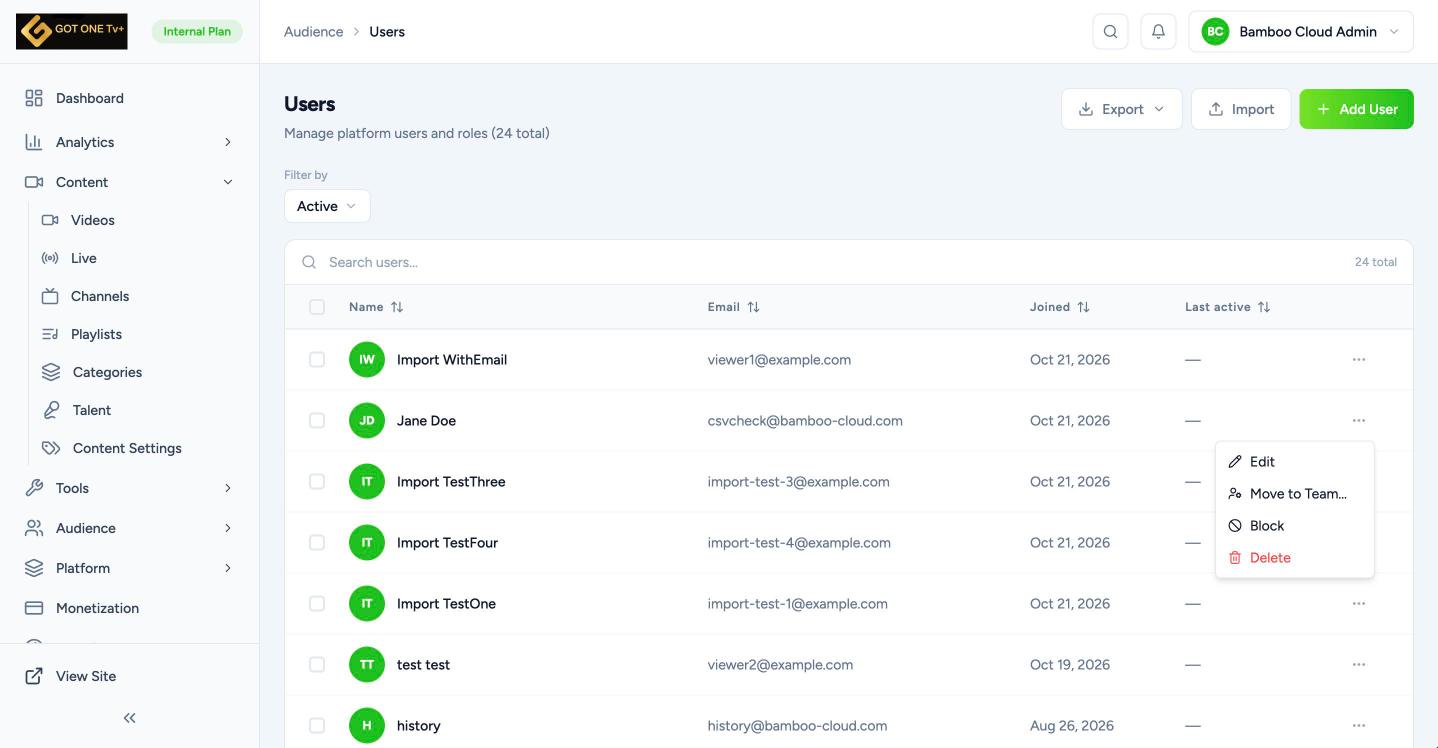
 Users page.” width=”1438″ height=”748″ />
Send a Registration Email
When you upload the file, you can choose whether new viewers get a registration email. It’s a simple way to let people know your streaming site is ready for them. The email goes out when Notify User on Registration is turned on in Audience > Emails. Then click Import. A summary shows which emails were added and which need another look.
Tips for a Clean Import
- Fill every cell: a row with an empty cell is skipped, so check for missing names or passwords.
- Clean up duplicates first: one row per email address.
- Test with a few rows: import a small file with your own email, then the full list.
- Tell people it’s coming: a quick heads-up in your newsletter or from the stage means the registration email won’t be a surprise.
Manage Your Viewers After the Import
Once your audience is in, Audience > Users is where you look after them. Filter by Active or Blocked, and sort by name, email or join date.
- Block and Unblock: open a viewer’s ⋯ menu and choose Block. Blocked viewers can’t sign in, but their account is kept. To restore access, filter by Blocked and choose Unblock. You can block several viewers at once from Actions.
- Move to Team: if a viewer is ready to help run your platform, an Admin can open their ⋯ menu, choose Move to Team… and give them the Contributor, Manager or Admin role.
- Add Purchase: give viewers access to paid content manually from Actions, for example for members who already paid elsewhere.
Your Audience, Ready on Day One
Launching a streaming site shouldn’t mean asking everyone to start over. Import the audience you already have, welcome them in, and manage everyone from one place.
Ready to bring your viewers in? Open Users
Don’t have an account yet? Start your free trial today.