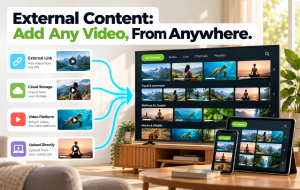


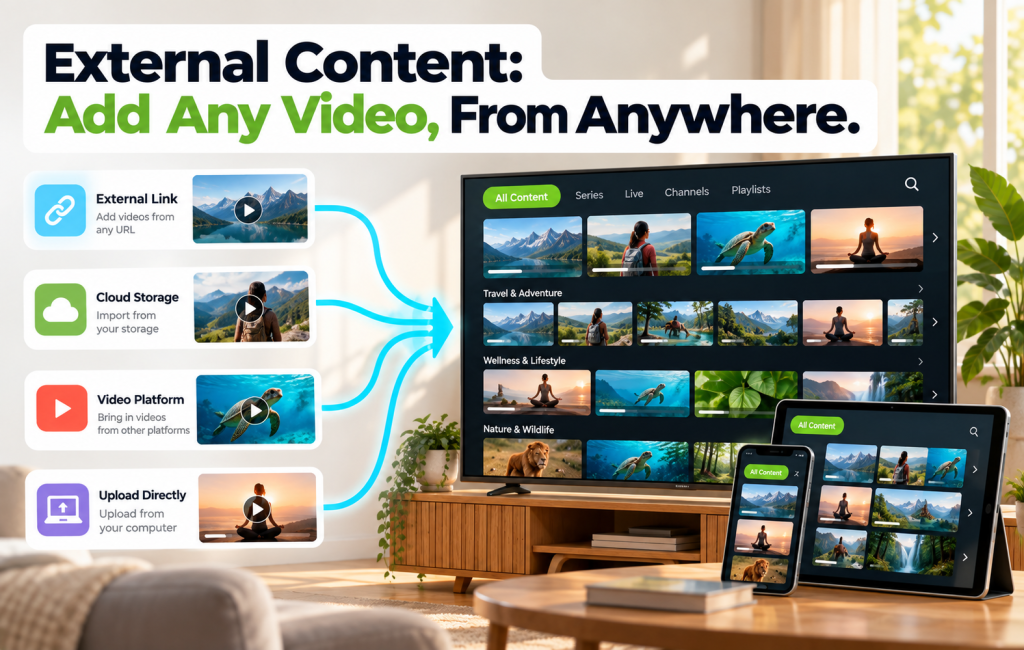
External Content: One Platform, Any Source
Not every video you want on your streaming platform is already hosted on it. A guest sermon lives on a partner church’s platform. A collaboration lives on another creator’s site. Festival films licensed from a distributor live wherever the distributor hosts them. In the old admin, bringing those videos into your Bamboo Cloud catalog required a custom setup — fine for enterprise clients, not for everyone else.
In the new Admin Dashboard, any account can add external content directly from a link — and it appears on your website and apps right next to the videos you host yourself.
What External Content Actually Is
External Content is a new option in the create menu of your Bamboo Cloud Admin Dashboard. Paste a link from a supported source, and the video joins your library like any other piece of content. It:
- Appears on your Bamboo Site alongside your own content
- Shows up in your apps on every device your audience uses
- Works with your categories — assign it, tag it, place it in your tree
- Respects your branding and access settings
- Can live in a free tier, SVOD tier, or any monetization model you’ve set up
From your audience’s perspective, there’s no visible difference between content you host yourself and content you’re pulling in from elsewhere.
Add Any Video in a Few Clicks
The workflow is deliberately simple:
- Open the create menu in the Admin Dashboard
- Select “Add External Content”
- Paste the video link from the source
- Add metadata — title, description, categories, thumbnail
- Save, and it appears on your platform
Total time to add an external video to your catalog: under a minute.
While We’re Here: Importing Your Own Content Also Got Better
While We’re Here: Importing Your Own Content Also Got Better
Alongside external content, importing your own videos from various sources also got a cleaner flow in the new Admin Dashboard:
- Upload from your device — drag and drop files on desktop, or upload directly from your phone through the mobile admin, both with live progress
- Import from a link — paste the URL and the file ingests directly
- Import from Dropbox — connect your account for bulk imports
- Import from YouTube — paste a YouTube URL to add a YouTube video to your library (plays through YouTube’s own player — see note below for how it differs from the other imports)
These sources existed in the old admin, but the ingest flow is noticeably faster and clearer now, with live progress indicators and better error handling.

Where External Content Actually Changes Things
External Content opens up specific use cases that were awkward or impossible before:
- Guest content: Feature a guest speaker’s talk without re-hosting the file
- Partner co-promotion: Add a partner’s content to a themed collection on your platform
- Licensed content: Feature films or series you have distribution rights to without storing them yourself
- Curated collections: Build a themed library that includes content from multiple sources, all surfaced inside your brand
What External Content Doesn’t Do
Because the file lives at its source, a few things stay with the source:
- If the source removes the video, it disappears from your library too
- The source’s own hosting controls (geo-blocking at the source, etc.) still apply
- You don’t automatically own or get rights to the content — add external videos only when you have permission
How to Find It
Open your Admin Dashboard at app.bamboo-cloud.com/admin. External content can be added from two places:
- From Content > Videos, using the + Add Video button at the top of the page
- From almost any other page in the dashboard, using the + circle in the bottom-right corner
Either way, “Add External Content” sits alongside Upload Video and the other content types
Start adding your External Content now: app.bamboo-cloud.com/admin
Don’t have an account yet? Start your free trial today.