

Bamboo Player Customization: The Settings Most Operators Miss
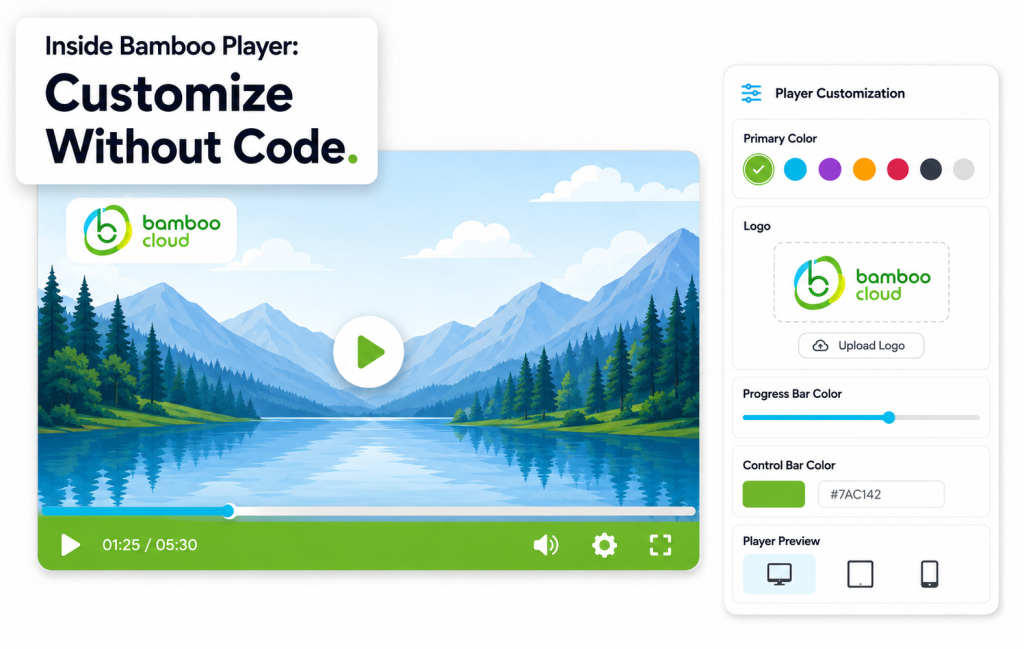
Bamboo Player customization is the most underused lever in the platform. Most operators ship with default colors, default controls, and default end-screens because they assume customization means a developer ticket. It doesn’t. Every visual element of the player — colors, logo, controls layout, end-screens, captions styling — is configurable from the dashboard. No code required.
Here’s the full tour of what Bamboo Player customization actually covers, and why it matters more than you’d think.
1. Brand Colors and Visual Identity
The first thing to set: your brand colors. Bamboo Player customization gives you control over:
- Player accent color (the progress bar, play button, and active states)
- Background and skin tones
- Caption and subtitle styling (font, size, background, position)
- Loading spinner color
Match these to your brand exactly. A player that uses your colors feels native to your site, not like a YouTube embed in disguise.
2. Logo and Watermark Placement
Upload your logo and choose where it sits — corner placements, opacity, and click behavior (link out, no-link, or full-screen-only display). For premium content, a persistent watermark protects against unauthorized re-uploads. For branded marketing video, a corner logo reinforces ownership on every play.
3. Controls Layout
Not every viewer needs every control. Bamboo Player customization lets you toggle:
- Volume, mute, and full-screen buttons
- Playback speed selector
- Quality selector (auto vs manual)
- Captions toggle
- Picture-in-picture mode
- Pop-out player (a Bamboo Player V2 feature)
The right control set varies by use case. A premium streaming service usually wants the full set. An embedded marketing video usually hides everything except play and full-screen.
4. End-Screens and Calls to Action
The 10 seconds after a video ends are pure attention you’d usually waste. End-screen customization in Bamboo Player turns that moment into a conversion lever:
- Auto-play the next video in a series
- Show a “Watch Next” recommended grid
- Display a CTA button (Subscribe, Buy, Visit)
- Embed a signup form for lead capture
5. Subtitles and Accessibility
Subtitle styling matters more than most operators think. Bamboo Player customization lets you control font family, size, background opacity, edge styling, and positioning. Strong subtitle styling expands your accessible audience and improves engagement for viewers who watch without sound — a majority on mobile.
6. Mobile vs Desktop Layouts
The same player can use different control layouts on mobile vs desktop. Mobile players typically benefit from simplified controls — fewer toggles, larger touch targets, and full-screen-first interactions. Bamboo Player customization respects these differences automatically.
7. Embed and White-Label Options
For embeds on third-party sites, you can lock down which features and branding appear. For your own Bamboo Site and OTT apps, you can run the full custom player experience. Either way, Bamboo Player customization keeps the brand consistent across surfaces.
A Practical Bamboo Player Customization Checklist
- Set the accent color to match your brand
- Upload your logo and choose corner placement
- Disable controls you don’t need
- Configure a default end-screen with a CTA
- Style your subtitles for accessibility
- Test the embedded vs full-app player experience
Most teams complete this checklist in 30 minutes — and the difference shows the moment a viewer presses play.
Ready to ship a player that looks like yours? Start your free trial today and customize Bamboo Player to your brand in under an hour.