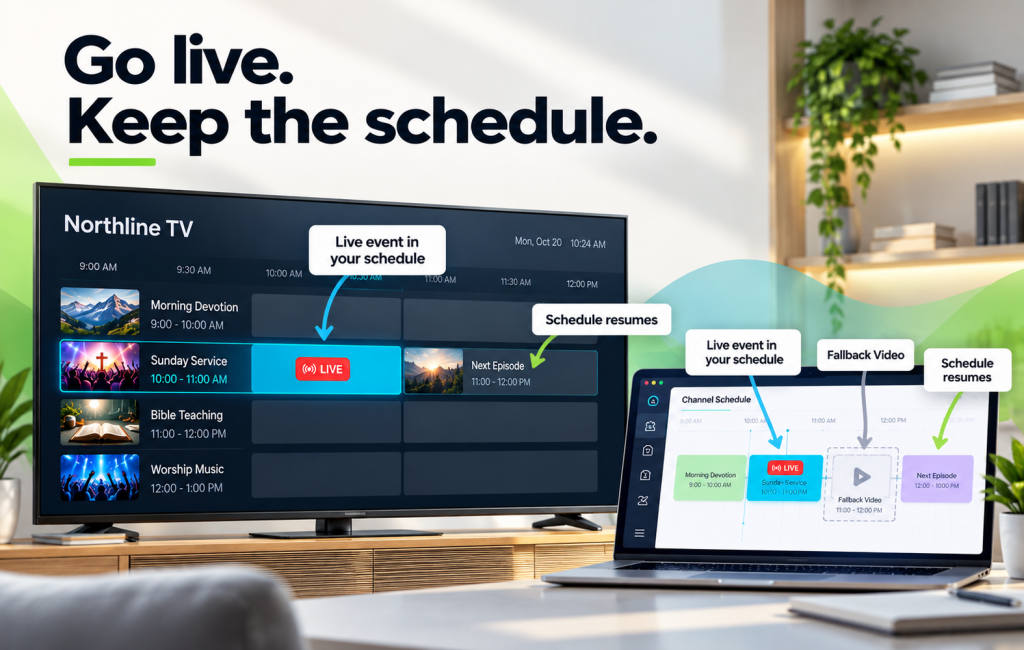
Traditional TV has always mixed the two. A network runs its schedule, cuts to a live game or a breaking event, then returns to regular programming. Live events in linear channels bring that same rhythm to your own 24/7 channel on Bamboo.
Instead of sending viewers to a separate live page, the live event airs right inside the channel they’re already watching. When it ends, the schedule carries on. Here’s how it works and how to set it up.
Why Live Belongs Inside Your Channel
A 24/7 channel builds a habit. Viewers know where to find you, and the TV guide tells them what’s on next. Sending them somewhere else for a live event breaks that habit.
Airing live events in linear channels keeps everything in one place:
- One destination. Viewers stay on the channel they already know.
- A live slot in the TV guide. The event shows up in the schedule, so people can plan around it.
- No dead air afterwards. Regular programming continues as soon as the live slot ends.
- A bigger built-in audience. Anyone already tuned in catches the live moment without searching for it.
Who Uses It
The format fits any channel with a regular lineup and occasional live moments:
- Sports networks airing match day live between replays and highlight shows
- Local and community TV carrying town meetings, parades and school events
- Media brands running a weekly live show inside an on-demand lineup
- Ministries airing Sunday services inside a 24/7 faith channel
- Conferences placing keynotes live between recorded sessions
How to Set Up Live Events in Linear Channels
You’ll need a Scheduled channel, which follows a real program grid with start times. Scheduled channels are available on Pro and Business.
Step 1: Create the live event
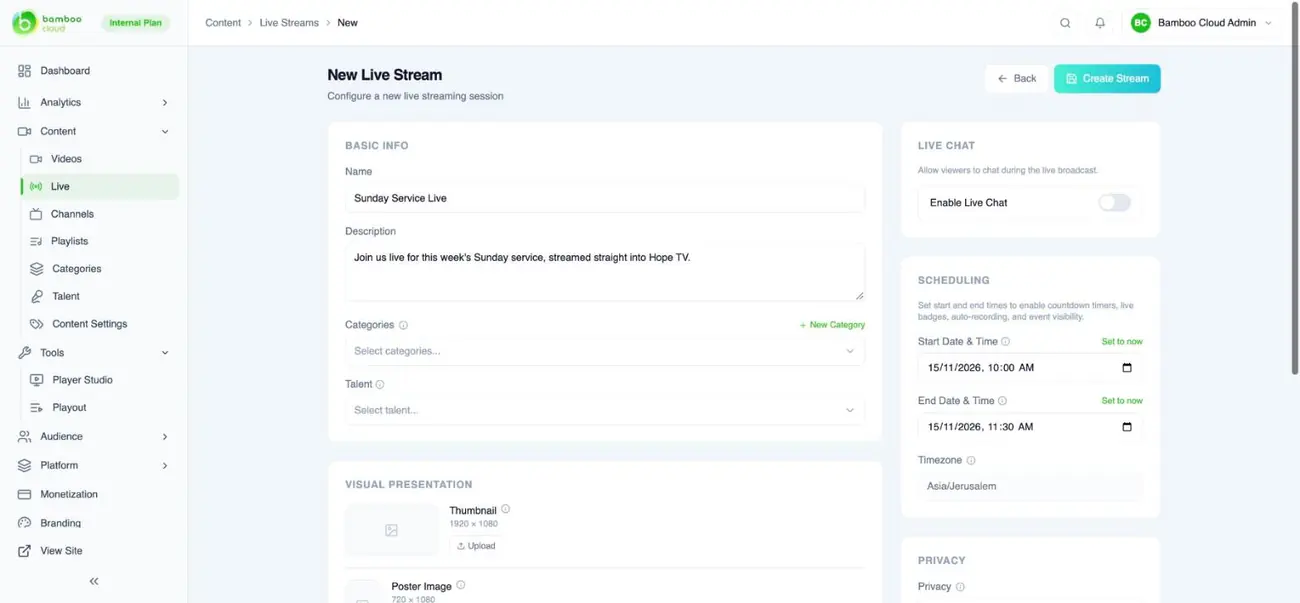
Go to Content > Live and click Add Live Stream. Add a name, description, thumbnail and categories. Set the start and end times, which power the countdown and LIVE badge.
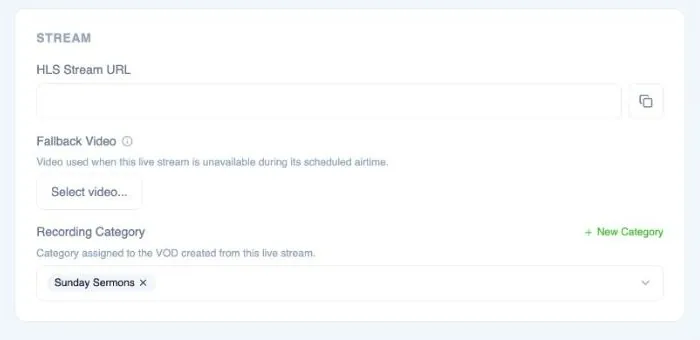
Next, choose a Recording Category. When the event ends, the recording is added there as a regular video, ready to schedule again later as a replay.
Step 2: Set a Fallback Video
Live events don’t always start on the dot. A Fallback Video loops if the stream isn’t broadcasting yet during its airtime, so viewers never see a black screen. A branded “We’ll be live shortly” clip works well. You can set it on the live event and in the channel’s settings.
Step 3: Drop it into the schedule in Playout
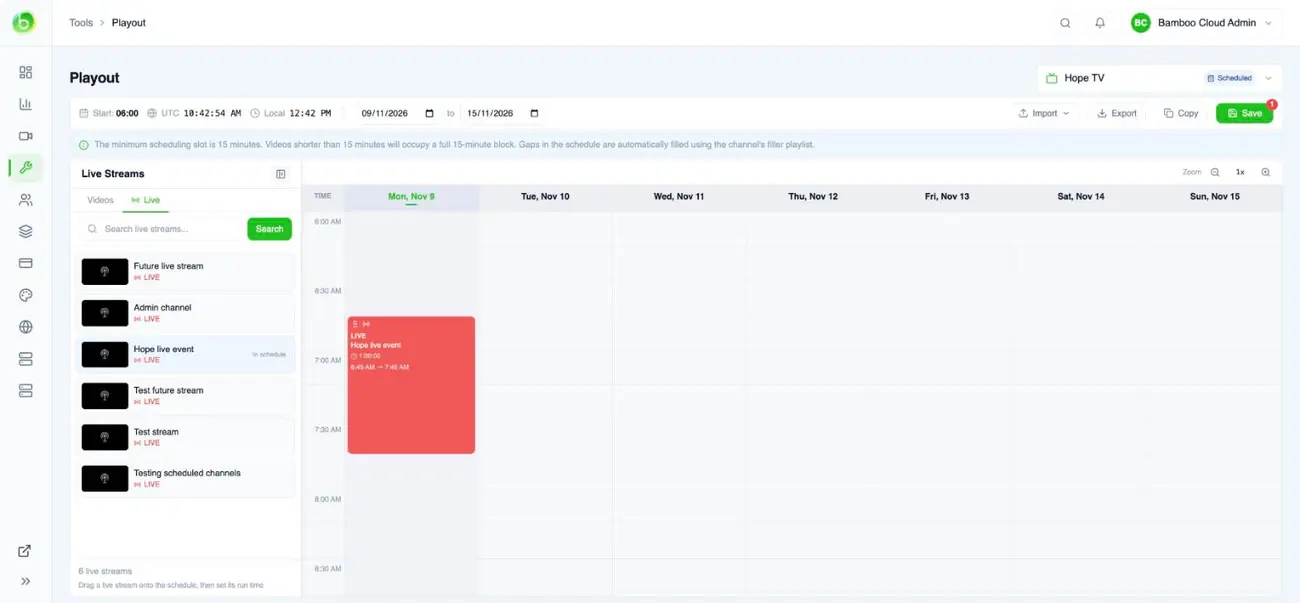
Open Tools > Playout and select your Scheduled channel. In the library panel, open the Live tab. Then drag the live event onto the timeline and set its run time. Click Save to publish the change.
The TV guide on your site and apps updates automatically, so viewers can see the live slot coming.
Step 4: Go live from your encoder
Copy the RTMP URL and stream key from the live event into your encoder, such as OBS, vMix or Wirecast. Start streaming before your slot begins. When the slot arrives, the channel switches to your live feed.
Step 5: Let the schedule pick back up
When the live slot ends, the channel moves straight on to the next program in your schedule. Meanwhile, the recording lands in its category. You can schedule it as a replay later that week with a simple drag in Playout.
Tips for a Smooth Live Slot
- Pad the run time. Give the slot a few extra minutes for late starts and long finishes.
- Brand the fallback. Use your channel’s look, so the wait feels intentional.
- Promote the slot. Share the channel page link ahead of time, and mention the live event in the program before it.
- Plan the replay. Schedule the recording in a later slot to catch viewers in other time zones.
- Embed the channel. Use Platform > Live TV > Embed to show the channel and its guide on another website.
Your Channel, Now Live
Live events in linear channels give you the best of both formats: the reliability of a 24/7 schedule and the energy of live. Your audience stays tuned in, your guide stays accurate, and your channel never goes quiet.
Ready to schedule your first live slot? Open Playout
Don’t have an account yet? Start your free trial today.