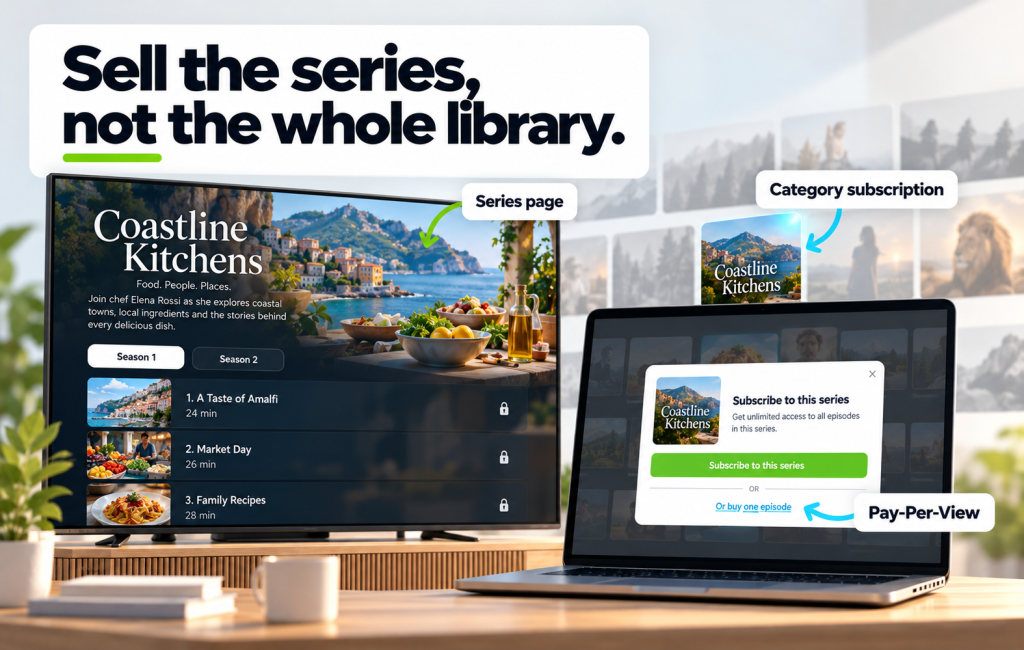
The all-access subscription is the default model in streaming. Yet it isn’t always the best one. Many viewers want one thing from you: a single course, one documentary series, or this season’s training program. Category subscriptions let you sell exactly that, without asking people to pay for everything else.
This breakdown covers when selling by series makes sense, how to set it up in Bamboo, and how to combine it with your other pricing.
Why One Price for Everything Leaves Money on the Table
An all-access plan works well when your audience wants your whole catalog. However, many libraries serve very different groups. A fitness brand might have yoga fans and strength fans. A ministry might run a marriage course and a youth series. A filmmaker might have one breakout series and a back catalog.
When there’s only one price, two things happen. Some people pay for content they never watch. Others don’t pay at all, because the full plan feels like too much for the one thing they want.
Category subscriptions solve both problems. You price each series or course on its own, and viewers buy what they came for.
Where Category Subscriptions Work Best
Online courses: sell each course separately, organized into modules with progress tracking.
Premium series: put a flagship series behind its own subscription while the rest stays free.
Seasons: sell Season 2 to fans who finished Season 1.
Programs and challenges: sell a 30-day fitness or devotional program as a package.
Conference archives: sell last year’s sessions as one bundle.
How to Set Up Category Subscriptions in Bamboo
Subscriptions are part of the Pro and Business plans. First, connect your payment gateway, Stripe or PayPal, in Monetization > Payment Gateways.
Step 1: Create the subscription
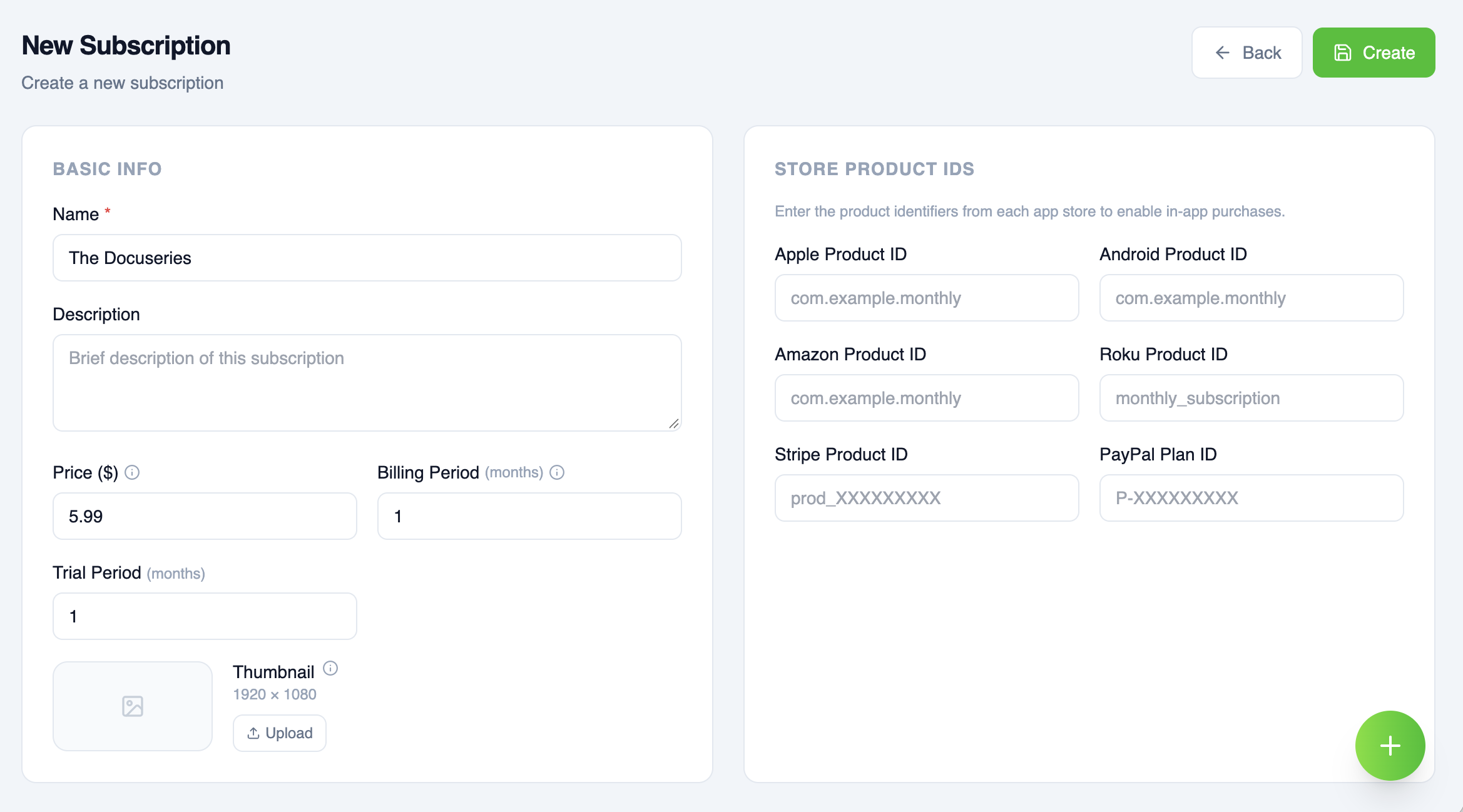
Go to Monetization > Subscriptions and create a new one. Give it a name, description, thumbnail and price. Then set the Billing Period (months), and add a Trial Period (months) if you want people to try before they pay.
Selling a course or program people should own outright? Turn on All Subscriptions Are One-Time Purchases, and each subscription is sold as a single payment instead of recurring billing.
Step 2: Attach it to a category
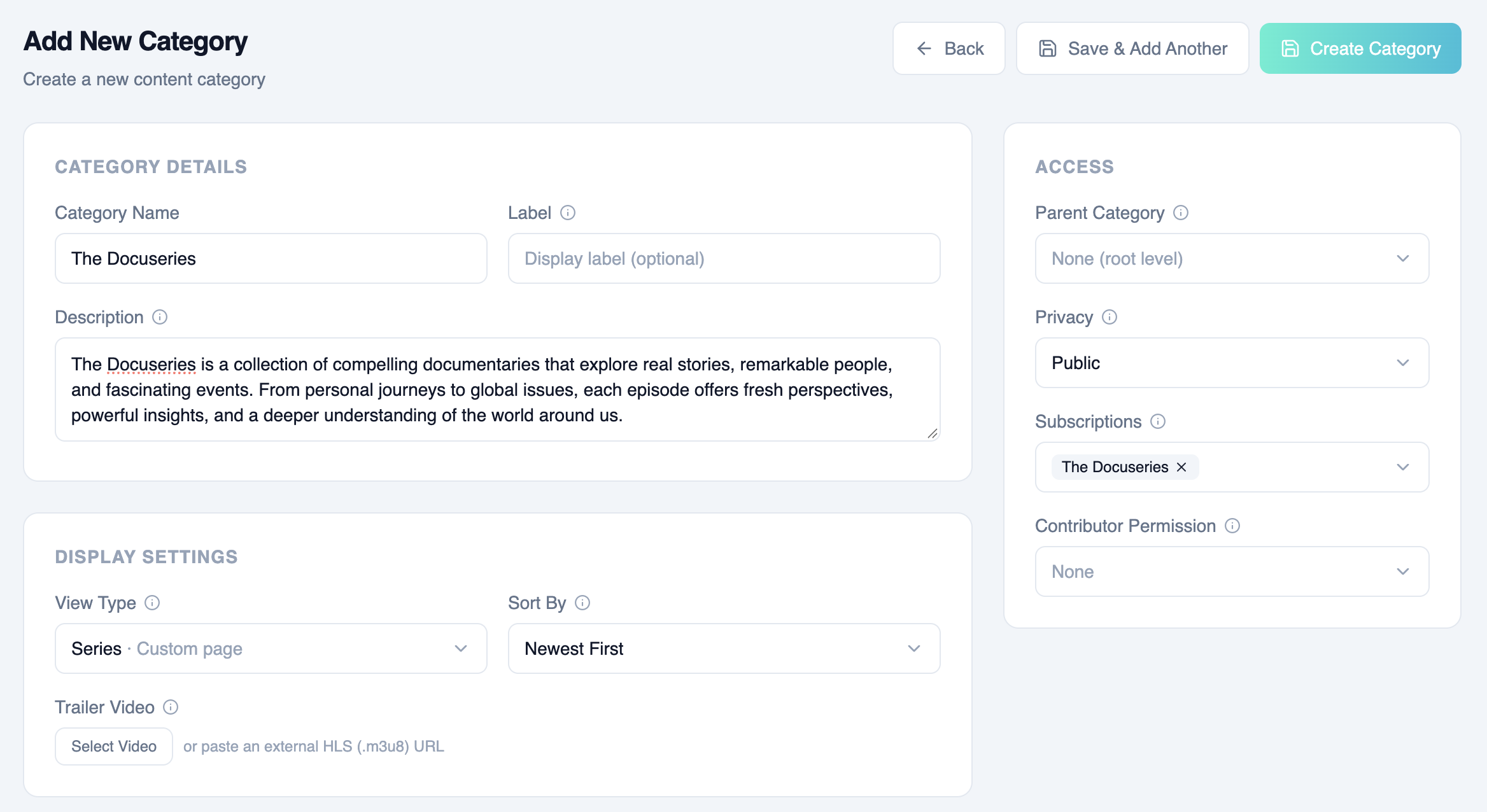
Open Content > Categories and create or select the category that holds your series or course. In the Subscriptions field, choose the subscription you just created. Every video in that category is now available to its subscribers.
Step 3: Give it a proper home
Set the category’s View Type to Series or Course. A Series page groups episodes by season. A Course page organizes lessons by module and shows viewers their progress, so they pick up where they left off.
Step 4: Bring it to the apps
On the Business plan, your apps can sell the same subscription through in-app purchases. Create matching products in your Apple, Google, Amazon and Roku developer accounts, then paste each product ID into the subscription.
Mix and Match Your Pricing
Category subscriptions don’t replace your other options. They sit alongside them:
Pay-Per-View on single episodes: add a Price on a video’s Access tab. Viewers can then either subscribe to the series or buy one episode.
Free trial period: let new viewers watch free for the first month or more, then billing starts automatically.
All-access plan: keep a full-library subscription for your biggest fans, and offer single-series subscriptions as a lighter entry point.
Then watch what sells in Analytics > Revenue Analytics, and adjust your prices series by series.
Sell What Viewers Actually Want
Your library isn’t one product. It’s many. Category subscriptions let each series, course or season earn on its own, and they give new viewers an easier first purchase.
Ready to price your first series?Create a subscription
Don’t have an account yet? Start your free trial today.
Giving Tuesday is December 1. If your ministry or nonprofit streams video, here's how to put a Give button in front of your viewers before the day arrives.