Giving Tuesday falls on December 1 this year, right after Thanksgiving weekend. For ministries and nonprofits, it’s one of the moments in the year when supporters are actively looking for a way to give. If your community already watches your videos, your streaming site is a natural place to make that easy.
This walkthrough shows how to set up Giving on your Bamboo site in a few minutes, so it’s ready well before the day.
What Giving Does
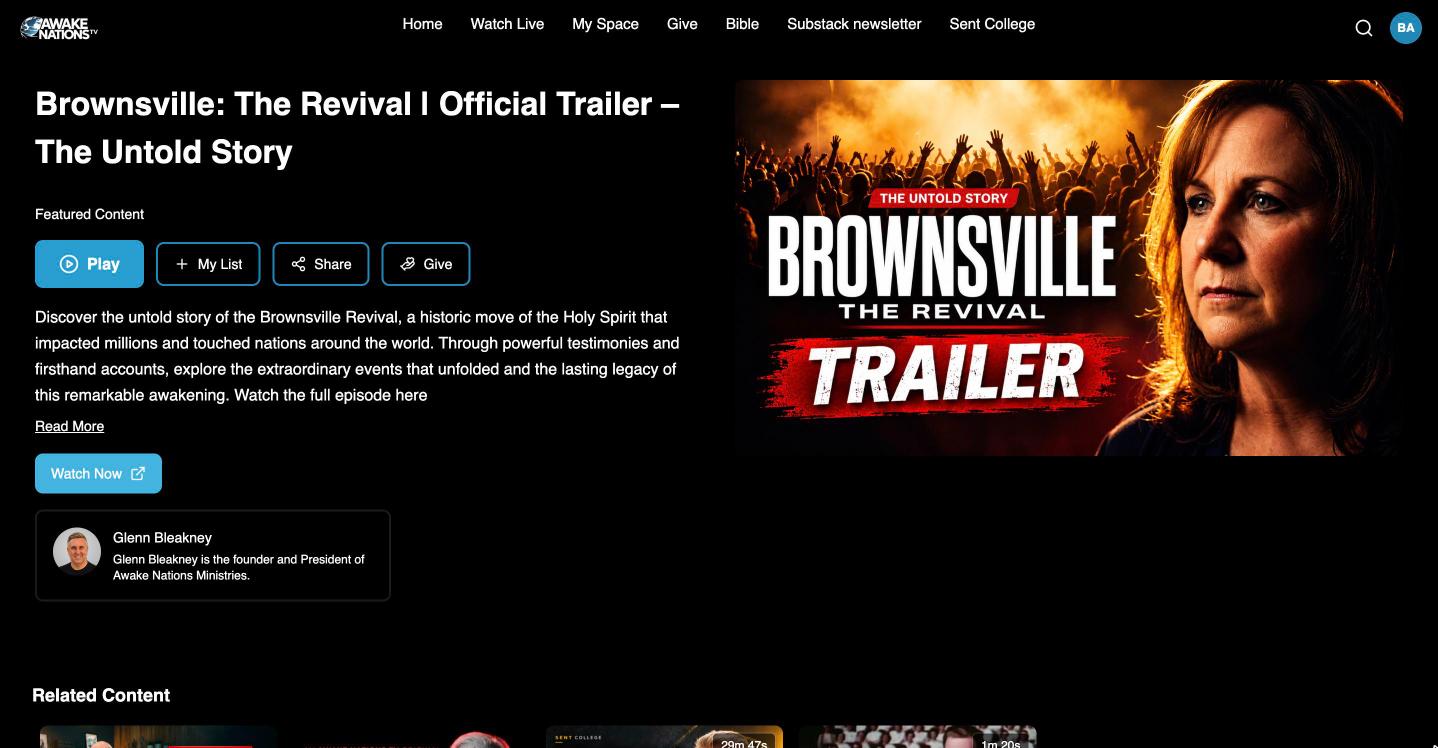
Giving adds a Give button to your streaming site. When someone clicks it, they go to your own Stripe giving page, where they choose an amount and complete a one-time gift. You can show the button:
- On video pages, next to the Share button.
- On series pages, next to the Share button.
- In your menu, as a Give item that’s always one tap away on your site and apps.
Giving is available on the Pro plan and up.
Step 1: Create a Giving Link in Stripe
In your Stripe account, create a new Payment Link. Set the type to Customers choose what to pay, so each supporter picks their own amount. You can add a suggested amount and a minimum if you like. Under the advanced options, change the button label to Donate, then create the link and copy it.
Step 2: Turn On Giving in Bamboo
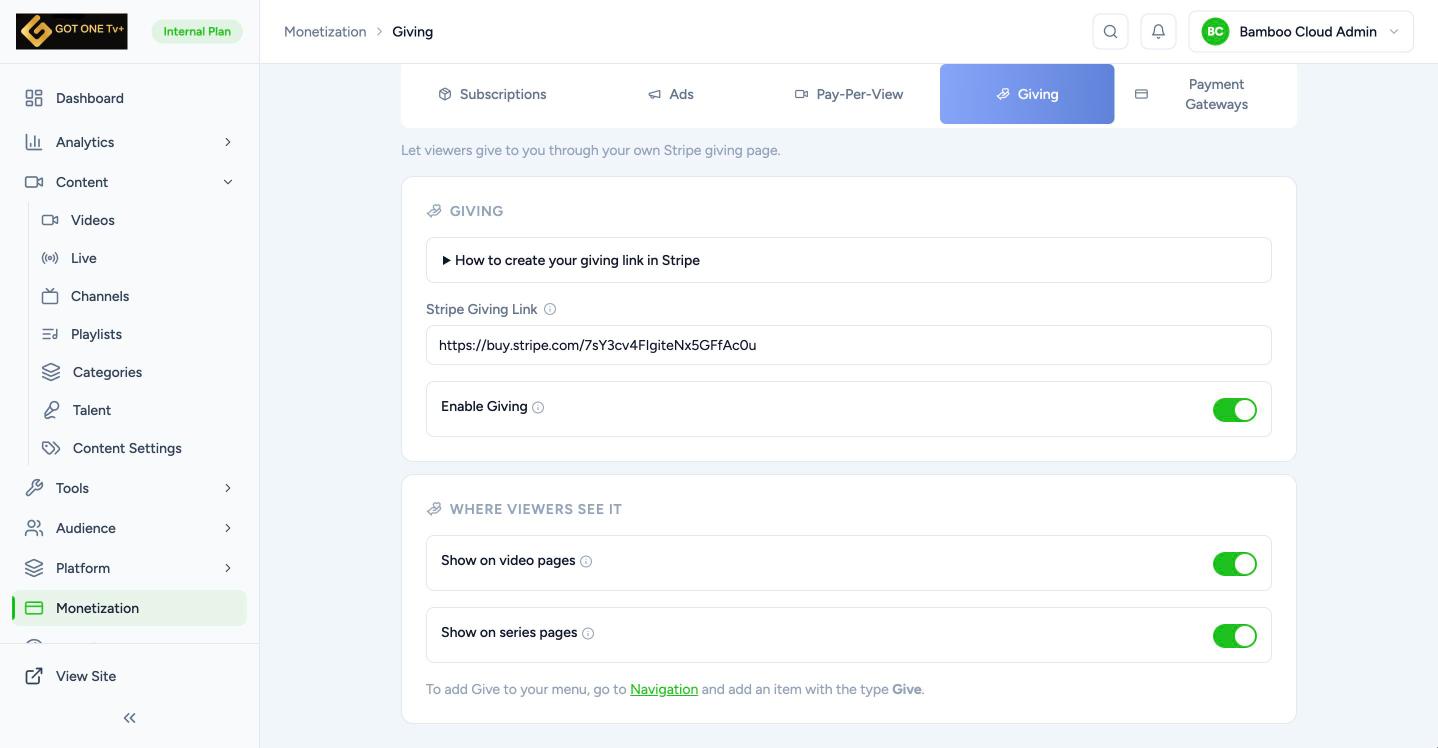
Go to Monetization > Giving. Paste your link into Stripe Giving Link and switch on Enable Giving. Then choose where the button appears: Show on video pages, Show on series pages, or both.
Step 3: Add Give to Your Menu
Go to Platform > Navigation, click Add Menu Item, and set its Type to Give. Give it a label like “Give” or “Support Our Mission”, then click Save Changes.
Your Giving Tuesday Checklist
- Test it now: open a video page, click Give and walk through the Stripe page yourself.
- Pick a focus: tell supporters what this year’s gifts will do, in one or two sentences.
- Record a short video: a one-minute message from your pastor or director explaining the need, published as its own video with the Give button beside it.
- Mention it live: if you stream services or events that week, remind viewers that the Give button is on every video page.
- Share the link: send the video in your email and social posts on December 1.
- Say thank you: follow up with a thank-you video the week after.
Make Giving One Click Away
Your supporters already come to your site for messages, programs and live events. With Giving switched on, they can support your mission from the same place, on Giving Tuesday and every week after.
Ready for December 1? Open Monetization
Don’t have an account yet? Start your free trial today.