

Channels Made Simple + a Faster Scheduler
Setting up a channel in the old admin asked you to pick two things that interacted in confusing ways. You chose a “channel type” and a “scheduling type” — and depending on the combination, half the fields on the page didn’t apply to you. If you picked a looped channel, there was no schedule to configure, but the schedule fields were still there. If you picked a scheduled Bamboo channel, you had to configure a different set of fields entirely.
In the new Admin Dashboard, the channel setup and the channel scheduler got the clean rebuild they needed.
One Clear Channel Type Picker
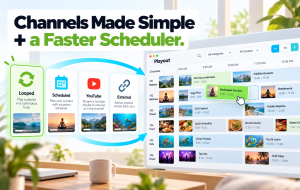
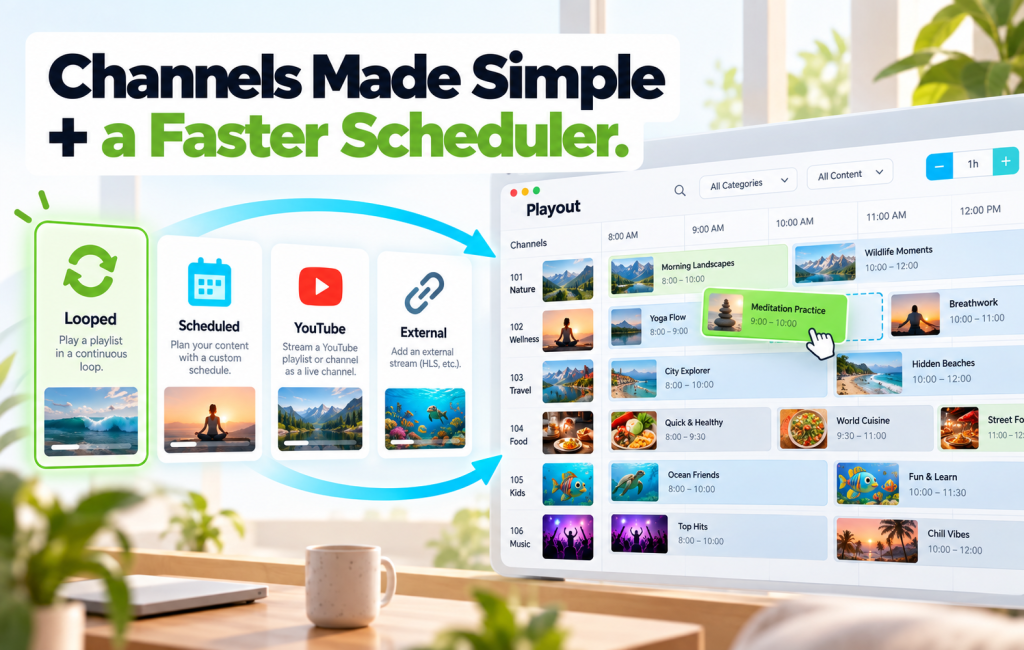
Setup now starts with one choice. You pick the type of channel you want, and the rest of the setup form only shows the fields that apply to it. The four types:
- Looped — Plays selected content from your library in a continuous loop. Set it and it runs.
- Scheduled — Plays content at set times. This is the full programming experience, with the calendar scheduler and all its controls.
- YouTube — Loops content from a YouTube source. Point it at a channel or playlist and it plays.
- External — Streams a channel from an outside source. Paste in a link and the channel is live.
Each type has a one-line explanation right next to it, so new team members don’t have to guess what “looped” vs “scheduled” means.
New: XML Scheduling for External Channels
External Channels picked up a new capability in the rebuild: you can now add an XML feed to drive the channel’s scheduling. If you’re pulling in a channel from a partner or an external source that publishes an XML schedule, the channel will program itself from that feed automatically. Previously, external channels could only be configured as a straight stream pass-through — now, the scheduling data flows through too.
A Faster, Cleaner Channel Scheduler
The channel scheduler — Playout — got the biggest rebuild of all. It now has two views depending on your channel type.
Basic View (for Looped Channels)
A simple list of the content in the loop. Add videos, reorder them, and you’re done. The full calendar isn’t shown because looped channels don’t need one.
Advanced View (for Scheduled Channels)
The full calendar scheduler, now with:
- Zoom from ½× to 3× — scale the calendar up to place short clips and promos precisely, or zoom out to see the full week at a glance
- Multi-select — add several videos at once, or drag a group into the schedule
- Smarter filtering — search, filter by multiple categories at once, and sort to find what you need quickly
- Schedule copy — duplicate a schedule to another channel in one action, instead of rebuilding it from scratch
- Newly added items highlighted — see exactly where new content landed in the schedule
- A cleaner overall layout — fewer visual distractions, more room for the calendar itself
What This Changes Day-to-Day
If you program a channel every week, the channel scheduler improvements add up fast:
- Programming a day’s worth of content takes meaningfully less time with multi-select and better filters
- Short-form content (promos, bumpers, 30-second clips) is finally easy to place precisely with the zoom
- Launching a sister channel is now a one-click schedule copy, not a rebuild
- Spotting where new content ended up after a long programming session no longer requires scrolling to find it
How to Find It
Open your Admin Dashboard at app.bamboo-cloud.com/admin, navigate to Content > Channels, and start setting up a channel. The new type picker appears at the top. Once a channel is created, the new Playout scheduler is one click away (Tools>Playout)
See the new Channels and Playout experience: app.bamboo-cloud.com/admin
Don’t have an account yet? Start your free trial today.