Running a Christian TV channel used to mean satellite contracts and a broadcast budget. Today, a church or ministry can run one from the content it already has. Your sermons, worship sets, Bible teaching and testimonies can become a 24/7 network with a real TV guide.
The result feels like television. People turn it on in the morning, leave it playing in the kitchen, and come back to it at night. Here’s the blueprint for launching yours.
Why a 24/7 Ministry Network Works
On-demand libraries are great for people who know what they want. However, many viewers just want something good to put on. A channel answers that need. It also gives your ministry a daily presence instead of a weekly one.
- Always on. There’s something to watch any hour of the day.
- Lean-back viewing. No searching or choosing, just press play.
- New life for old content. Past sermons and series keep reaching people.
- A shared moment. Live services air right inside the channel, so everyone gathers in the same place.
Step 1: Plan Your Program Grid
Think like a TV programmer. Break the day into blocks, then fill each block with content that suits that time:
- Early morning: devotionals and prayer
- Daytime: Bible teaching series and worship sets
- After school: children’s ministry and youth content
- Evening: full sermons, testimonies and special events
- Overnight: calm worship music
Organize your library with categories that match these blocks. That makes scheduling much faster later.
Step 2: Create a Scheduled Channel
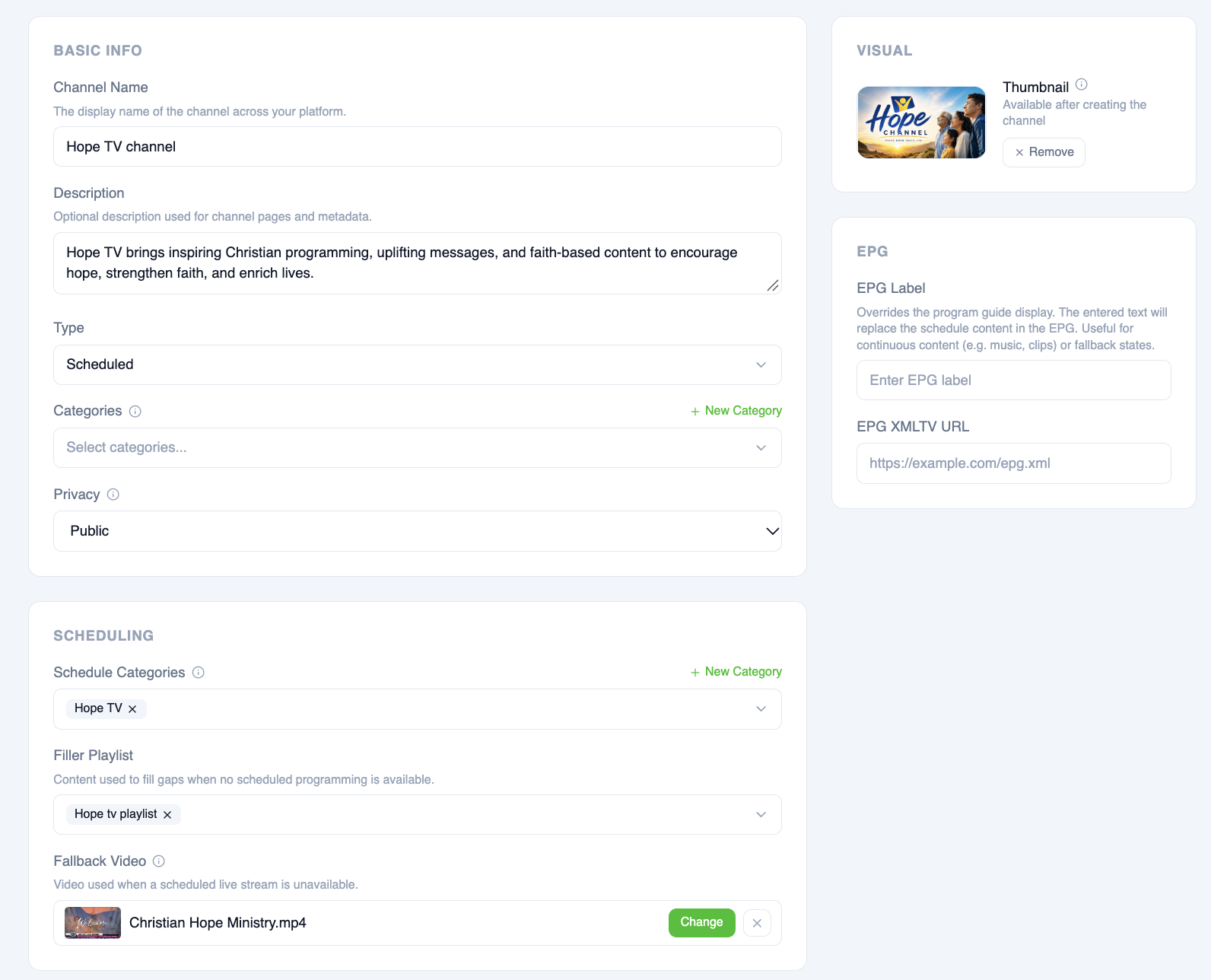
Go to Content > Channels and create a channel with the Scheduled type. Give it a name, description and thumbnail. Then set:
- Schedule Categories: the categories you want to program from
- Filler Playlist: content that plays automatically in any gaps, such as worship music
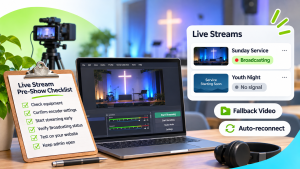
- Fallback Video: a branded clip that plays if a live service starts late
Step 3: Build the Week in Playout
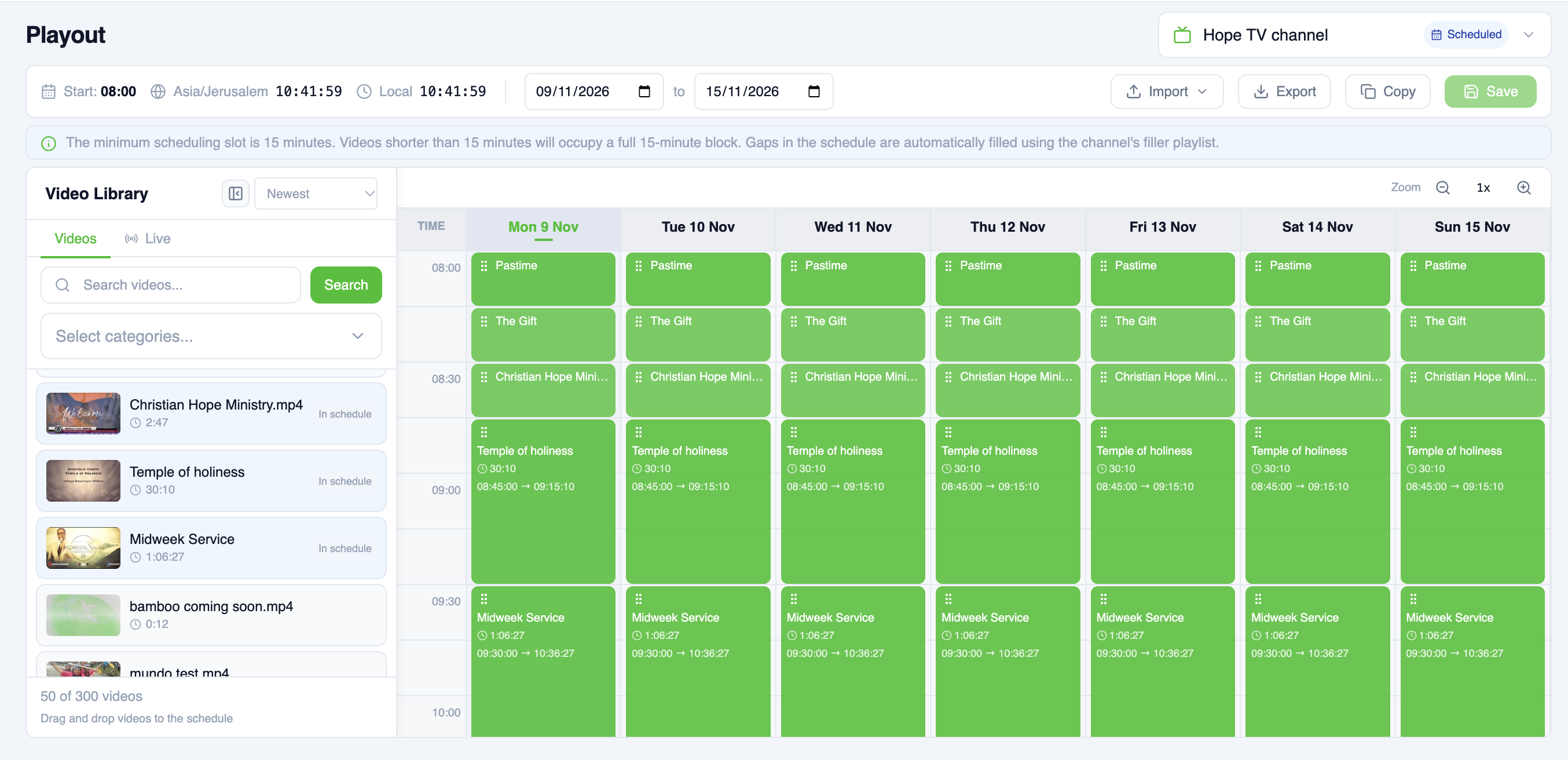
Open Tools > Playout and select your channel. Use the Advanced view to see the whole week. Drag sermons, worship and teaching onto the timeline, then adjust start times.
Once a good day is in place, use Copy to repeat it across other days or a whole date range. A full week of programming can come together in an afternoon.
Step 4: Air Your Services Live
This is where a Christian TV channel really comes alive. Create your Sunday service in Content > Live, then drag it into the schedule from the Live tab in Playout. The service airs live inside your channel, and regular programming picks up again when it ends.
Every service is recorded automatically into the category you choose. That means this week’s sermon can air again as a replay on Wednesday night.
Step 5: Reach Every Screen
Your channel appears on your branded streaming site with a TV guide, so viewers always know what’s on now and next. In addition, you can share it widely:
- Your church website: go to Platform > Live TV, open Embed, and copy the code for the channel player and guide.
- Your own apps: on the Business plan, the channel plays in your apps for phones, tablets and TVs, including Roku, Apple TV and Fire TV.
- Other platforms: each channel has an HLS stream link you can hand to partners and FAST platforms that carry faith channels.
Step 6: Support the Ministry
Most ministry channels stay free to watch. To support the work, turn on Giving in Monetization > Giving and link your Stripe giving page. A Give button then appears across your site and apps. You can also offer conferences or special events as Pay-Per-View.
Your Ministry, On Air Around the Clock
A Christian TV channel turns your library into a daily companion for your community. Start with one well-planned week, air your services live, and let the channel carry your message every hour of the day.
Ready to launch your channel? Create your first channel
Don’t have an account yet? Start your free trial today.