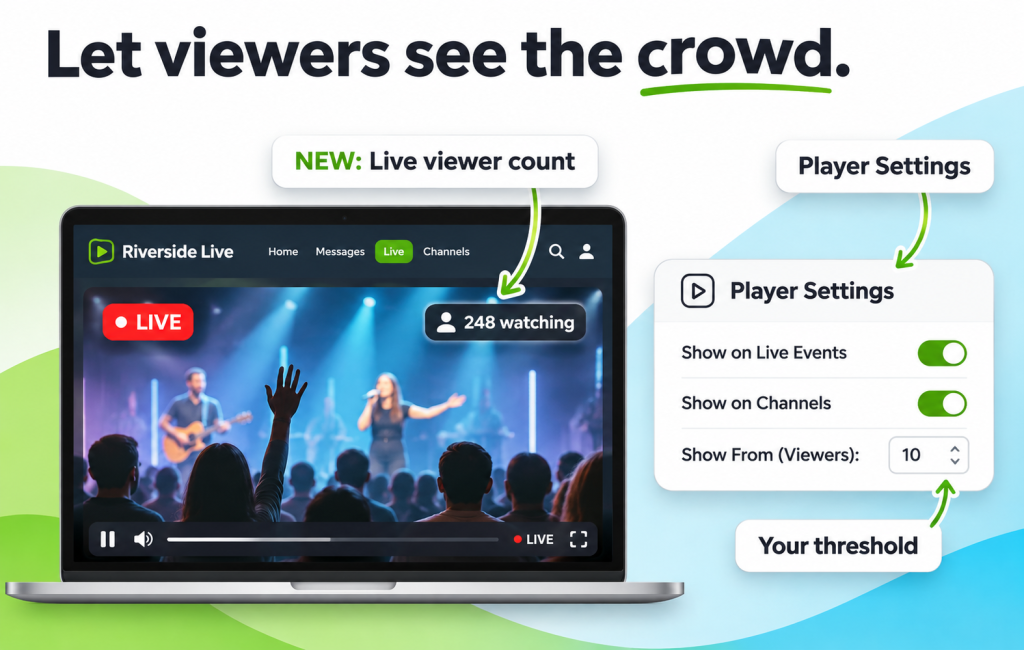
Walk past a restaurant with a line out the door, and you assume the food is good. Walk past an empty one, and you keep walking. Live streams can work the same way. When viewers can see that other people are watching right now, the stream feels less like a video and more like a shared event. A live viewer count makes that visible.
What “248 Watching” Tells a Viewer
People take cues from other people. It’s called social proof, and a viewer count is one simple way to add it to a live stream:
- It shows there’s a room: a new viewer can see they’ve joined something other people are watching too.
- It supports belonging: a church member watching from home can see they’re part of the congregation, not alone on a couch.
- It marks the moment as live: a changing number reminds people this is happening now.
How Bamboo’s Live Viewer Count Works
Bamboo shows a small “N watching” badge, with a person icon, on the player of your live events and 24/7 channels on your website. The number updates as people join and leave, so it always reflects the room right now.
You decide where it appears and when it kicks in:
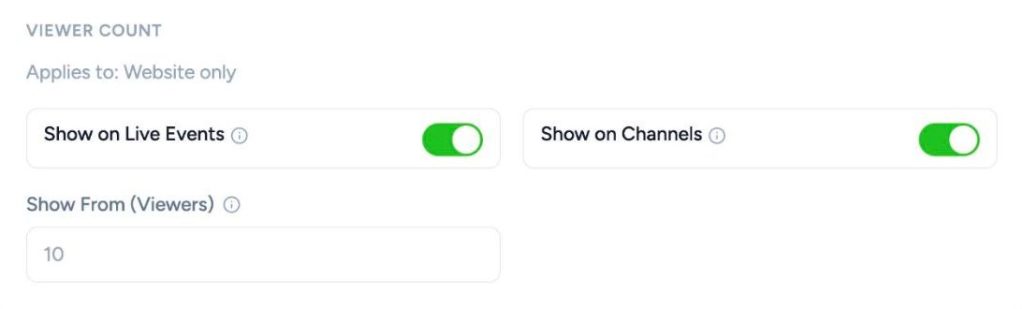
- Show on Live Events: display the count on live streams (Basic plan and up).
- Show on Channels: display the count on your 24/7 channels (Pro plan and up).
- Show From (Viewers): set a threshold so the badge only appears once enough people are watching. The default is 10.
How to Turn On the Live Viewer Count
- Go to Platform > General and open Player Settings.
- Switch on Show on Live Events, Show on Channels, or both.
- Set Show From (Viewers) to the number that makes sense for your audience.
- Save, and the badge appears on your next live stream.
Picking the Right Threshold
The threshold decides when the badge appears, so a stream that has just started doesn’t show “2 watching”. Start with the default of 10. After a few broadcasts, check how many people usually join, and raise or lower the number to fit your actual audience size.
Watch the Numbers Behind the Scenes
While viewers see the badge, you get the full picture. The Watching Now box in Analytics > Live & Channels shows every live stream and channel with current viewers, updated every 15 seconds. It’s perfect for a producer keeping an eye on the room during a big event.
Make Every Broadcast Feel Like an Event
The viewer count works best alongside a few simple habits:
- Promote a start time: share the stream’s link ahead of time so people arrive together.
- Restream to social: send the stream to YouTube and Facebook too, then invite those viewers to your site.
- Say it out loud: a host who says “welcome to the 300 of you watching” turns a number into a community.
Your online audience is real. A live viewer count lets them see each other.
Ready to show off your audience? Open Player Settings
Don’t have an account yet? Start your free trial today.