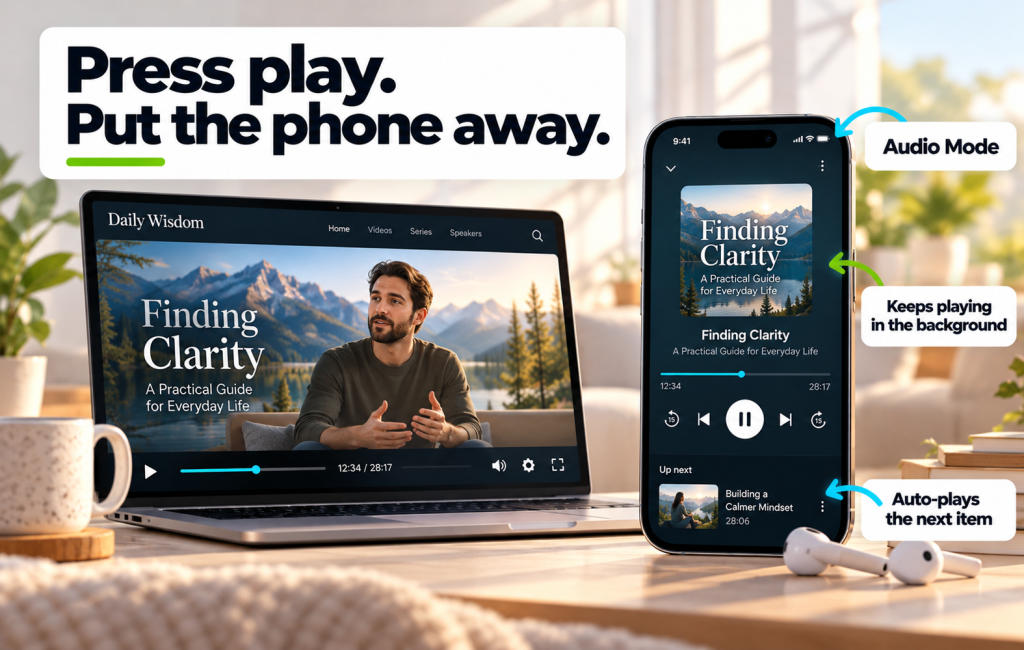
Some of your best content doesn’t need a screen. A sermon, a lecture, an interview or a music set can be just as powerful through a pair of earbuds. Audio Mode lets viewers switch any video in your app to audio-only playback, so they can keep listening while they drive, work out or cook dinner.
Here’s what Audio Mode does, who it’s for, and how to switch it on.
Watching Time Is Limited. Listening Time Isn’t.
People only have so many hours to sit and watch a screen. However, they have plenty of hours with their hands and eyes busy: commuting, walking the dog, folding laundry. That’s when podcasts and music apps win.
Audio Mode lets your platform compete for those hours too. Viewers don’t need a separate podcast feed or a second app. They open your app, press play, and listen.
What Audio Mode Does
- Audio-only playback. Viewers switch a video to audio, without the picture.
- Background playback. The audio keeps playing when they lock their phone or leave the app.
- Continuous listening. With auto-play turned on, the next item starts on its own, so a series plays straight through.
Who Benefits Most From Audio Mode
- Churches and ministries: sermons, Bible teaching and worship music
- Video podcasts and talk shows: interviews and conversations that work as audio
- Educators and course creators: lectures and lessons people can review on the go
- Music platforms: live sets, sessions and concerts
- Wellness brands: guided meditations and talks
Running a video podcast? Audio Mode pairs naturally with the approach in our video podcast platform guide.
How to Turn On Audio Mode
Audio Mode is part of your own iPhone and Android apps on the Business plan. Setup takes a minute.
Step 1: Enable Audio Mode
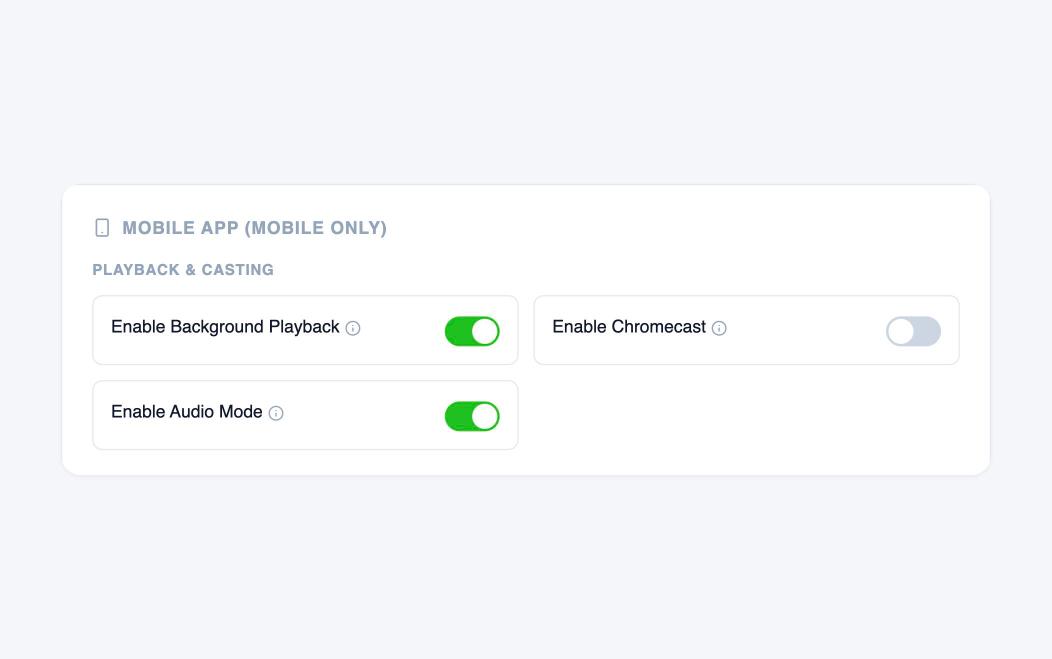
Go to Platform > Apps. In the Mobile app section, under Playback & casting, switch on Enable Audio Mode.
Step 2: Enable Background Playback
In the same section, switch on Enable Background Playback. This keeps the audio going when viewers leave the app or lock their screen.
Step 3: Turn on auto-play
Go to Platform > General > Player Settings and turn on auto-play for the next video. Now a listener can start a series and let it run.
Make Your Content Listen-Friendly
Most talk-based content already works well as audio. A few small habits make it even better:
- Say it, don’t just show it. Read key on-screen text or slides out loud.
- Use clear titles. Listeners pick from a list, so titles should say exactly what each episode covers.
- Order your series. Use a Series or Course page so episodes play in the right order.
- Mind the audio quality. Without the picture, sound is everything. A good microphone pays off.
- Tell people it’s there. Mention Audio Mode in your emails, social posts and the start of your videos.
Give Your Audience More Ways to Tune In
Audio Mode turns every video in your app into something people can enjoy on the move. It adds listening time to your platform without adding a single new piece of content.
Ready to switch it on? Open App Settings
Don’t have an account yet? Start your free trial today.